Surveying, Mapping and GIS

Exploring all aspects of mapping and geography, from field data collection, to mapping and analysis, to integration, applications development and enterprise architecture...

  • Geospatial Technology, End to End...

    Exploring all aspects of mapping and geography, from field data collection, to mapping and analysis, to integration, applications development, enterprise architecture and policy
Showing posts with label Linux. Show all posts

Research Triangle Institute

Posted by Dave Smith On 4/29/2007 08:18:00 PM 0 comments

Toward the end of this week I had the pleasure of spending two days with the folks at Research Triangle Institute. RTI is a 501(c) operated by Duke University, UNC Chapel Hill, North Carolina State University, and North Carolina Central University and was formed in 1958 as one of the charter members of North Carolina's Research Triangle.

I had been bumping into a number of their people over the last couple of years, and it always seemed that we had many mutual interests. At any rate, we may well be forming some more solid alliances with RTI moving forward, to pursue geospatial applications development and environmental science. I was impressed with their capabilities, their ethic and many other aspects of how they operate.

They have many interesting things going on, such as a bioinformatics division, which is doing such things as modeling avian influenza on synthetic populations using a Linux supercomputing cluster, as well as much work for USEPA Office of Research and Development. Excellent breadth and depth in environmental and life sciences.

I could do a lot with an organization like this behind me - May this be a long and happy relationship...

More Linux Tips: Gnome/KDE Shortcuts

Posted by Dave Smith On 3/31/2007 08:01:00 AM 0 comments

As I have a couple of Linux boxes now running in Virtual PC 2007, I wanted them accessible regardless of where I am working. I could have either taken the approach of sharing the VHDs on the network and dealing with network traffic, or just tried Remote Desktop. Currently I'm trying the Remote Desktop approach.

I discovered that when I connect to my Ubuntu 6.10 session via Remote Desktop, I seem to have some sort of mis-synchronization with the mouse. So this brings up the next good workaround for Gnome/KDE - I found a great list of keyboard shortcuts for navigating:

http://www.novell.com/coolsolutions/tip/2289.html

FOR GNOME:

General Shortcut Keys

Alt + F1

Opens the Applications Menu .

Alt + F2

Displays the Run Application dialog.

Print Screen

Takes a screenshot.

Alt + Print Screen

Takes a screenshot of the window that has focus.

Ctrl + Alt + right arrow

Switches to the workspace to the right of the current workspace.

Ctrl + Alt + left arrow

Switches to the workspace to the left of the current workspace.

Ctrl + Alt + up arrow

Switches to the workspace above the current workspace.

Ctrl + Alt + down arrow

Switches to the workspace below the current workspace.

Ctrl + Alt + d

Minimizes all windows, and gives focus to the desktop.

F1

Starts the online help browser, and displays appropriate online Help.


Window Shortcut Keys


Alt + Tab

Switches between windows. When you use these shortcut keys, a list of windows that you can select is displayed. Release the keys to select a window.

Alt + Esc

Switches between windows in reverse order. Release the keys to select a window.

F10

Opens the first menu on the left side of the menubar.

Alt + spacebar

Opens the Window Menu .

Arrow keys

Moves the focus between items in a menu.

Return

Chooses a menu item.

Esc

Closes an open menu.

Ctrl + Alt + right arrow

Switches to the workspace to the right of the current workspace.

Ctrl + Alt + left arrow

Switches to the workspace to the left of the current workspace.

Ctrl + Alt + up arrow

Switches to the workspace above the current workspace.

Ctrl + Alt + down arrow

Switches to the workspace below the current workspace.

Ctrl + Alt + d

Minimizes all windows, and gives focus to the desktop.


Panel Shortcut Keys


Ctrl + Alt + Tab

Switches the focus between the panels and the desktop. When you use these shortcut keys, a list of items that you can select is displayed. Release the keys to select an item.

Ctrl + Alt + Esc

Switches the focus between the panels and the desktop. Release the keys to select an item.

Ctrl + F10

Opens the popup menu for the selected panel.

Tab

Switches the focus between objects on a panel.

Return

Chooses the selected panel object or menu item.

Shift + F10

Opens the popup menu for the selected panel object.

Arrow keys

Moves the focus between items in a menu. Moves the focus between interface items in an applet also.

Esc

Closes an open menu.

F10

Opens the Applications menu from the Menu Bar , if the Menu Bar is in a panel.


Application Shortcut Keys


Ctrl + N

New

Ctrl + X

Cut

Ctrl + C

Copy

Ctrl + V

Paste

Ctrl + Z

Undo

Ctrl + S

Save

Ctrl + Q

Quit


FOR KDE:


Alt + F2

Execute Command

Ctrl + B

Add Bookmark

Ctrl + Esc

List of running applications.

Ctrl + W

Close

Alt + Tab

Switch forward among windows

Ctrl + C

Copy

Alt + Shift + Tab

Switch backward among windows

Ctrl + End

End

Ctrl + F1 to F12

Switch to Desktop 1 + 12

Ctrl + F

Find

Shift + Ctrl + F1 to F4

Switch to Desktop 13 to 16

F3

Find Next

Ctrl + Alt + Esc

Kill Window (Click on the window to action the kill.)

Ctrl + F3

Find Prev

Ctrl + Alt + Delete

Logout (To complete logout process, Tab & Enter)

F1

Help

F12

Toggle cursor key mouse emulation

Ctrl + Home

Home

Alt + F1

Popup KDE launch menu

Ctrl + Insert

Insert

Ctrl + Tab

Switch forward one desktop

Ctrl + N

New

Ctrl + Shift + Tab

Switch back one desktop

Ctrl + Down

Next Complete Match

Alt + F4

Window close

Down

Next Item in List

Alt + F3

Window open menu

Ctrl + O

Open

Ctrl + V

Paste

"Windows" Menu

Popup Menu Context

Ctrl + Up

Previous Complete Match

Up

Previous Item in list

Ctrl + P

Print

Page Up

Prior

Ctrl + Q

Quit

Ctrl + Shift + Z

Redo

F5

Reload

Ctrl + R

Replace

Ctrl + S

Save

Ctrl + A

Select All

Ctrl + E

Text Completion

Ctrl + Z

Undo

Shift + F1

What's this

Ctrl + Plus (+)

Zoom In

Ctrl + Minus (-)

Zoom Out

Ubuntu and Linux-based GIS in Virtual PC

Posted by Dave Smith On 3/30/2007 04:19:00 PM 3 comments

I posted about HostGIS for Linux server-based GIS the other day... Nice canned distribution, but if you want flexibility or desktop apps, you may want to try some other goodies. I am still working my way up to the whole tilecache/OpenLayers thing... I have my own AJAX WMS client that I wrote, but want to look at doing some interesting things with tile servers and some open-source backend stacks.

At any rate, tempting fate again, I decided to give Ubuntu a try, as folks were raving about Ubuntu 'dapper' (6.06).

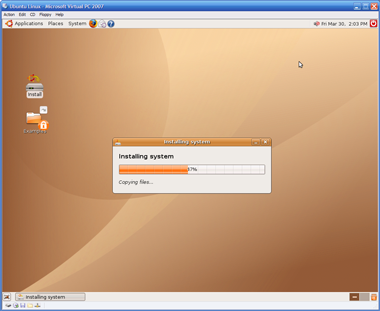
I downloaded Ubuntu 6.10 ('edgy') and fired the ISO up in Virtual PC 2007, but found that I only got to a scrambled screen when trying to do anything with it.

Not to fear... The fix:

  • At the boot screen, press F4 and select something reasonable that ISN'T in 24-bit color. I chose 800x600x16. I selected "Safe Graphics Mode" as well.
  • Let Ubuntu boot up from the ISO. You still will end up with a thoroughly scrambled X screen...
  • But don't panic, and don't try clicking on anything or letting the VPC session capture the mouse, you will be easily able to get a console session by pressing CTRL-ALT-F1. You should now see a console session with a prompt: ubuntu@ubuntu~$
  • Enter sudo nano /etc/X11/xorg.conf - this will open the X configuration in a text editor.
  • Scroll or page down untill you get to the "screen" section. You will see the default depth is set to 24 - change DefaultDepth to 16
  • Enter Ctrl-O to save, answer y to save the changes, and then enter Ctrl-X to exit the text editor. This should put you back at the shell prompt.
  • Enter sudo telinit 1 and wait for it to process and return to a shell prompt: root@ubuntu.
  • Enter telinit 5 and the X session will return, and voila, beatiful and without being scrambled. You should be able to click on Install and go on your merry way from here on out.
  • So now what? Where do I get those great Linux GIS goodies? Right from the get-go you should be able to go to Applications->Add/Remove and add in Quantum GIS (qgis).

  • For more apps, you can use the Synaptics Package Manager. Go into System->Administration->Synaptics Package Manager and add some of the repositories back in and hit "Reload" and then try searching. So far, I have been playing with desktop tools - GRASS, Thuban and QGIS. All quite painless to load using the package manager.

I am certainly no Linux guru, but was nonetheless able to get this environment up and running in Virtual PC in about an hour and a half. If you're mainly a Windows guy like me, you now no longer have much of an excuse to not try these out.

Search